URA Analysis — Manual
A Unit Rate Analysis (URA) is a breakdown of the cost components — materials, labour, and equipment — that make up the unit rate for a matched BOQ item. A manual URA lets you build this breakdown by hand, without AI.
Opening the URA workspace
- In Scenario Studio, select a BOQ item that has a match (status:
auto,approved, ormanual). - Click URA or the spreadsheet icon on the item row.
The URA workspace opens as a full-screen panel.
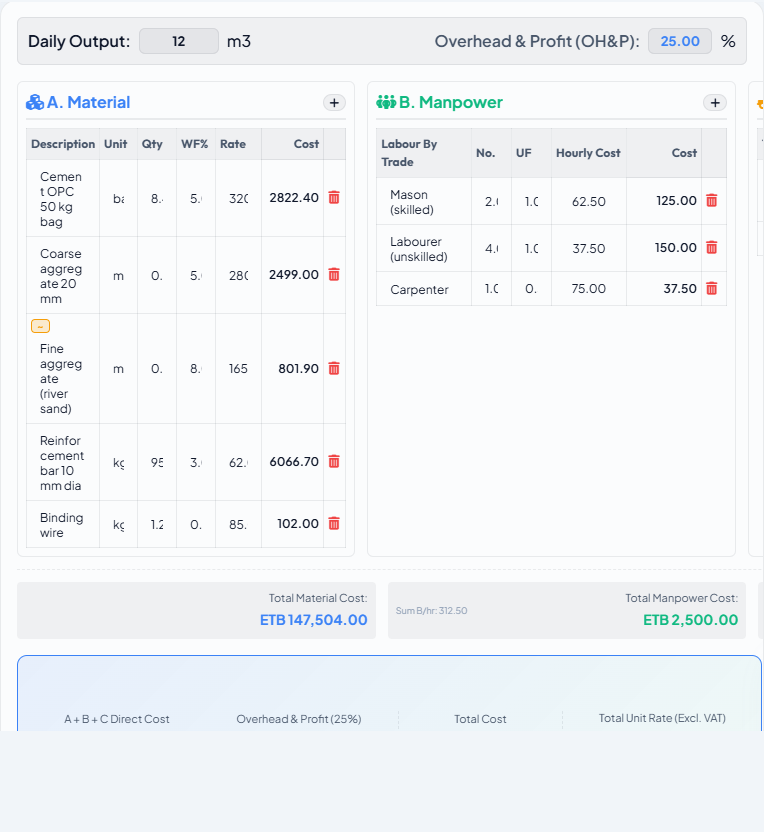
The workspace has three resource sections — Materials, Labour, Equipment — each a spreadsheet grid. Below the grid, the total cost and the OH&P section show the computed unit rate.
Adding resource rows
Materials
| Column | What to enter |
|---|---|
| Resource name | Type to search the active price book; select from autocomplete |
| Quantity | Amount of this material per unit of BOQ work (e.g. 1.05 m³ cement per m³ concrete) |
| Unit | Unit of the material (auto-filled from price book) |
| Waste factor % | Percentage added for on-site wastage (auto-suggested; editable) |
| Rate | Auto-filled from the price book; shown with exact / fuzzy / ⚠ badge |
Labour
| Column | What to enter |
|---|---|
| Resource name | Labour category from the price book (e.g. Mason, Labourer) |
| Crew size | Number of workers of this category per gang |
| Daily output | How many units of BOQ work the gang produces per day |
| Rate | Auto-filled from the price book (daily rate) |
Labour cost is computed as: (crew_size / daily_output) × rate.
Equipment
Same columns as Labour: name, crew size (number of machines), daily output, rate.
OH&P (Overheads & Profit)
The OH&P percentage is set project-wide in Settings → OH&P and applied automatically. You can override it per item using the OH&P field at the bottom of the workspace.
Direct Cost = Materials + Labour + Equipment
OH&P        = Direct Cost × (OH&P% / 100)
Unit Rate   = Direct Cost + OH&P
The variance badge
The variance badge in the workspace header compares the URA-derived unit rate against the rate from the matched rate table entry:
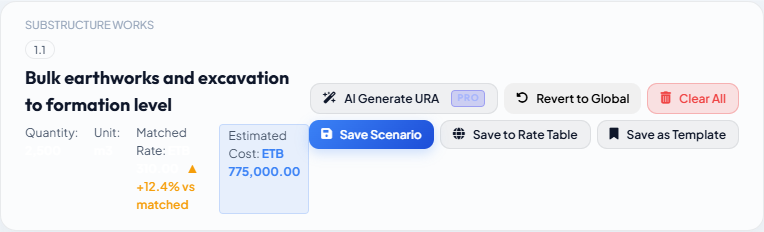
A large variance (typically > 15%) is an early signal that:
- The matched rate table entry is from a different market or region.
- A key resource is unmatched (rate = 0) and dragging the URA cost down.
- The rate table entry was entered without full cost build-up and needs updating.
Saving and promoting
Click Save in the workspace toolbar to persist the URA. The item's row in the scenario list shows a URA icon to confirm it has a breakdown.
To promote the URA to the Template Library so it can be reused across other items and future scenarios:
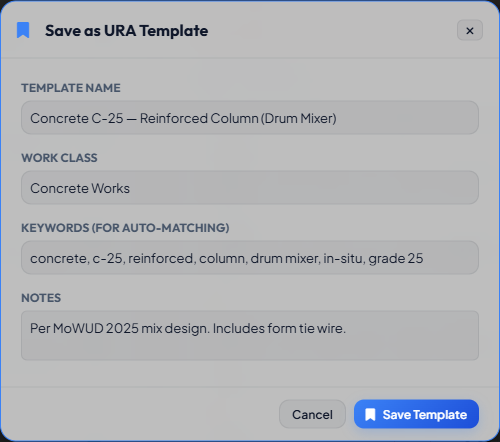
- Click Save as Template in the workspace toolbar.
- Enter a template name and review the auto-suggested keywords.
- Click Promote.
See Template Library for guidance on writing good keywords.