Coverage Analysis & Template Seeding PRO
Coverage Analysis and Template Seeding are the recommended workflow for generating URAs at scale. Instead of calling the AI once per BOQ item (hundreds of calls), you seed a small set of templates (typically 8–15) and then apply them across the entire BOQ in one batch pass. The result is faster generation, lower API cost, and consistent outputs across all items of the same work type.
The four phases at a glance
| Phase | What happens | AI calls |
|---|---|---|
| 1 — Coverage Analysis | Clusters BOQ items by work type; checks which clusters already have templates | 0 |
| 2 — Template Seeding | Generates one URA per uncovered work type; promotes each to the Template Library | 1 per uncovered cluster (typically 8–15) |
| 3 — Batch URA | Applies templates across all matched items | Minimal (template-adopted items: 0; AI-modified: 1 each) |
| 4 — Individual Review | You review, correct, and save each URA | 0 |
Phase 1 — Coverage Analysis
Click Coverage in the Scenario Studio toolbar. The analysis runs instantly (no AI call) and produces a table of work type clusters.
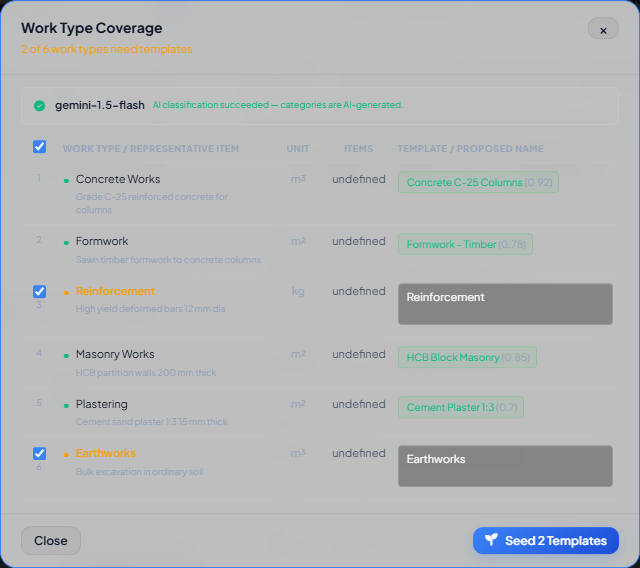
Each row shows:
- Work type — the cluster name (e.g.
Concrete - C-25,Formwork,Masonry - HCB) - Unit — the dominant unit for items in this cluster
- BOQ items — count of items in the cluster
- Template? — either a green chip (covered) with the matched template name and confidence, or an amber label (needs template)
Declining a wrong template match
When a covered row shows the wrong template — for example "Epoxy Flooring" matched to "Formwork" at low confidence — hover the green chip and click ✕ to decline it.
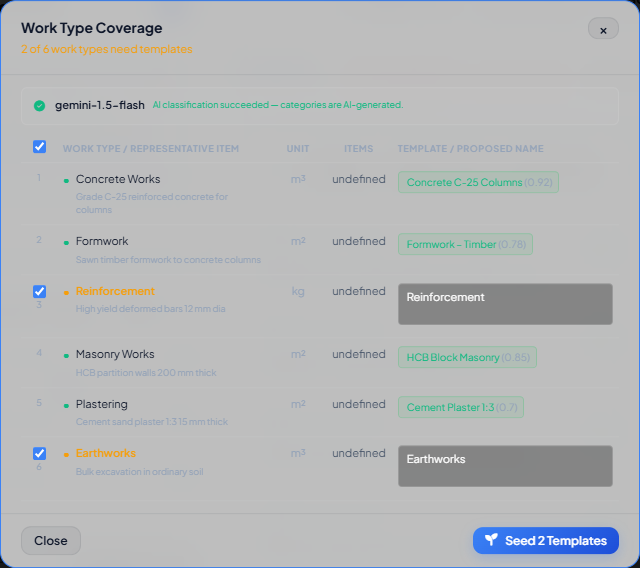
The row turns amber with a "Was: …" note showing the declined template. It is added to the seed list automatically. Click Undo to restore the original match.
Persisting results
Coverage results persist when you navigate away and return using Use Previous Results. Decline decisions are preserved. Click Re-run Fresh to clear everything and start over.
AI URA Generation Contexts
Generation contexts are named constraint rules that guide the AI when building a URA. They define how a work type should be constructed — which method, which resources, which approach.
Example: "On-site Drum Mixer Concrete" tells the AI to use individual raw materials (cement, aggregate, sand, water) mixed on site, not a pre-mixed product.
Setting project defaults
- Go to Settings → AI URA Generation Contexts.
- For each work category (Concrete, Earthworks, Formwork, Masonry, etc.), select the radio button next to the context that matches your project's method.
- Only one context per category can be the project default (enforced by the radio group).
Project defaults are applied automatically during Seeding and Batch URA. You can override them per item in the individual URA generation modal.
Phase 2 — Template Seeding
For each uncovered (amber) cluster, the modal shows a proposed template name — editable by you. Review the names and adjust any that are ambiguous.
- Check the boxes for the work types you want to seed in this run (all are pre-checked by default).
- Click Seed Templates.
For each selected work type:
- Conio picks the most representative BOQ item from the cluster.
- Generates its URA using the AI with the auto-selected project-default contexts.
- Immediately promotes the result to the Template Library with AI-generated keywords.
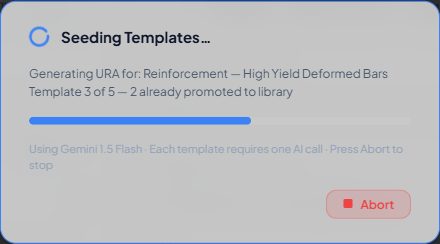
When seeding completes, the Coverage table updates — previously amber rows turn green.
Phase 3 — Batch URA
Click Batch URA in the Scenario Studio toolbar. The system processes all matched items that do not yet have a URA. For each item, Conio:
- Looks up the Template Library for the best matching template (by Jaccard score on keywords).
- Applies the template at the appropriate tier (see Template Library).
- Saves the URA.
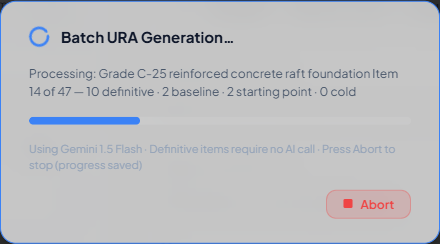
The template tier banner in the URA workspace tells you which tier applied for each item:
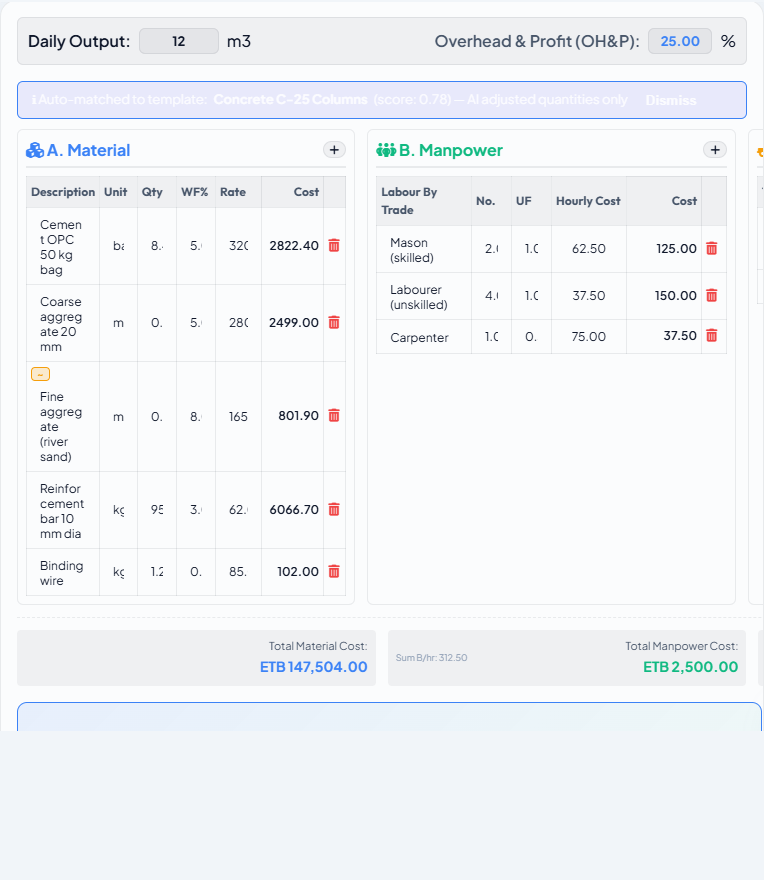
| Banner | Meaning |
|---|---|
| ✓ Applied template directly (no AI) | Definitive — rate table row was exported from this template |
| ℹ Auto-matched to template | Baseline — Jaccard ≥ 0.65; AI adjusted quantities only |
| ✎ Built on closest template (AI-modified) | Starting point — AI adapted the nearest recipe |
| (no banner) | Cold — generated from scratch; no suitable template found |
You can abort Batch URA at any time. URAs generated so far are saved and only the remaining items are processed on the next run.
Phase 4 — Individual Review
After batch generation, review each item's URA in the URA workspace:
- Amber
~badge on a resource: the price book matched by fuzzy substring — verify the right resource was selected. - Red
⚠badge on a resource: no match found, rate = 0 — add the resource to your price book. - Variance badge in the header: large gap between URA rate and matched rate table rate — investigate whether the rate table entry or the URA quantities need adjustment.
Edit quantities, crew sizes, or waste factors as needed, then click Save.