Test Sandbox & Semantic Search
The Test Sandbox and Semantic Search are diagnostic tools built into Scenario Studio. They let you experiment with descriptions and keywords to understand why items match (or don't) before committing to a Match All run or a Refine pass.
Test Sandbox
The Test Sandbox lets you edit a BOQ item's description and watch the candidate list update live — without saving any changes to the database.
Opening the sandbox
- Select a BOQ item in the left panel.
- Click Test Sandbox (appears alongside the Manual Override button).
A textarea appears below the item, pre-filled with the item's current description. A SANDBOX badge appears on the Candidates panel header to indicate you are in test mode.
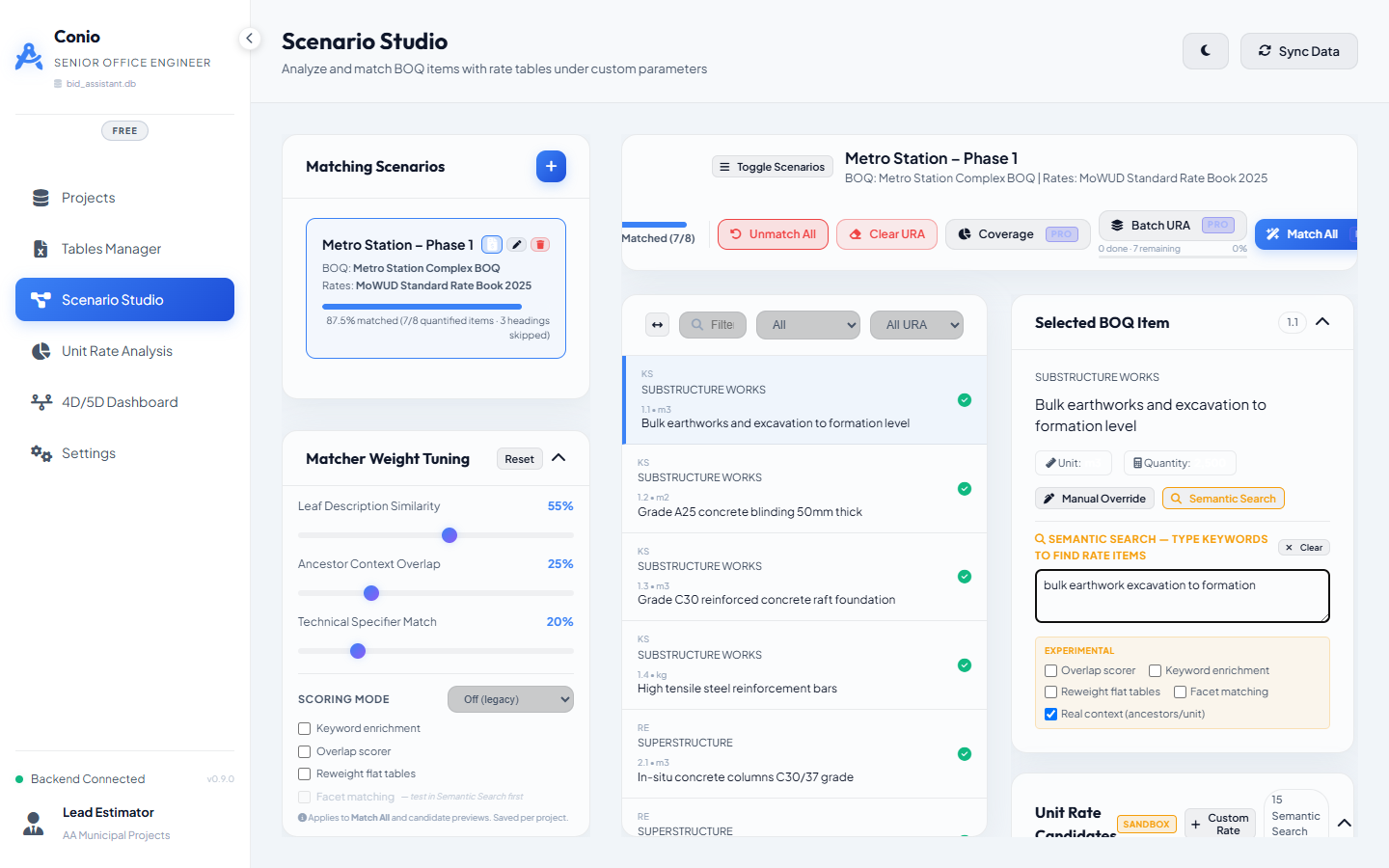
How to use it
- Edit the text in the textarea — add ancestor words, expand abbreviations, or rephrase.
- Candidates update automatically after a 400 ms pause (debounce).
- Observe which candidates move up or down in rank and by how much.
Common use: You notice a BOQ item is matching poorly. You suspect the rate table uses different terminology. Type the rate table's terminology into the sandbox and confirm that candidates improve. If they do, that is a signal to run AI Refine (which will extract those terms as keywords automatically) rather than editing descriptions manually.
Resetting
Click Reset to restore the textarea to the item's original description. Clicking a different BOQ item exits sandbox mode automatically.
Semantic Search
Semantic Search provides keyword-driven candidate discovery that operates independently of the item's stored description or ancestor path. Only your typed keywords are used for searching — no prior BOQ context is applied.
Opening Semantic Search
- Select a BOQ item.
- Click Semantic Search in the Candidates panel toolbar (or look for the magnifier icon).
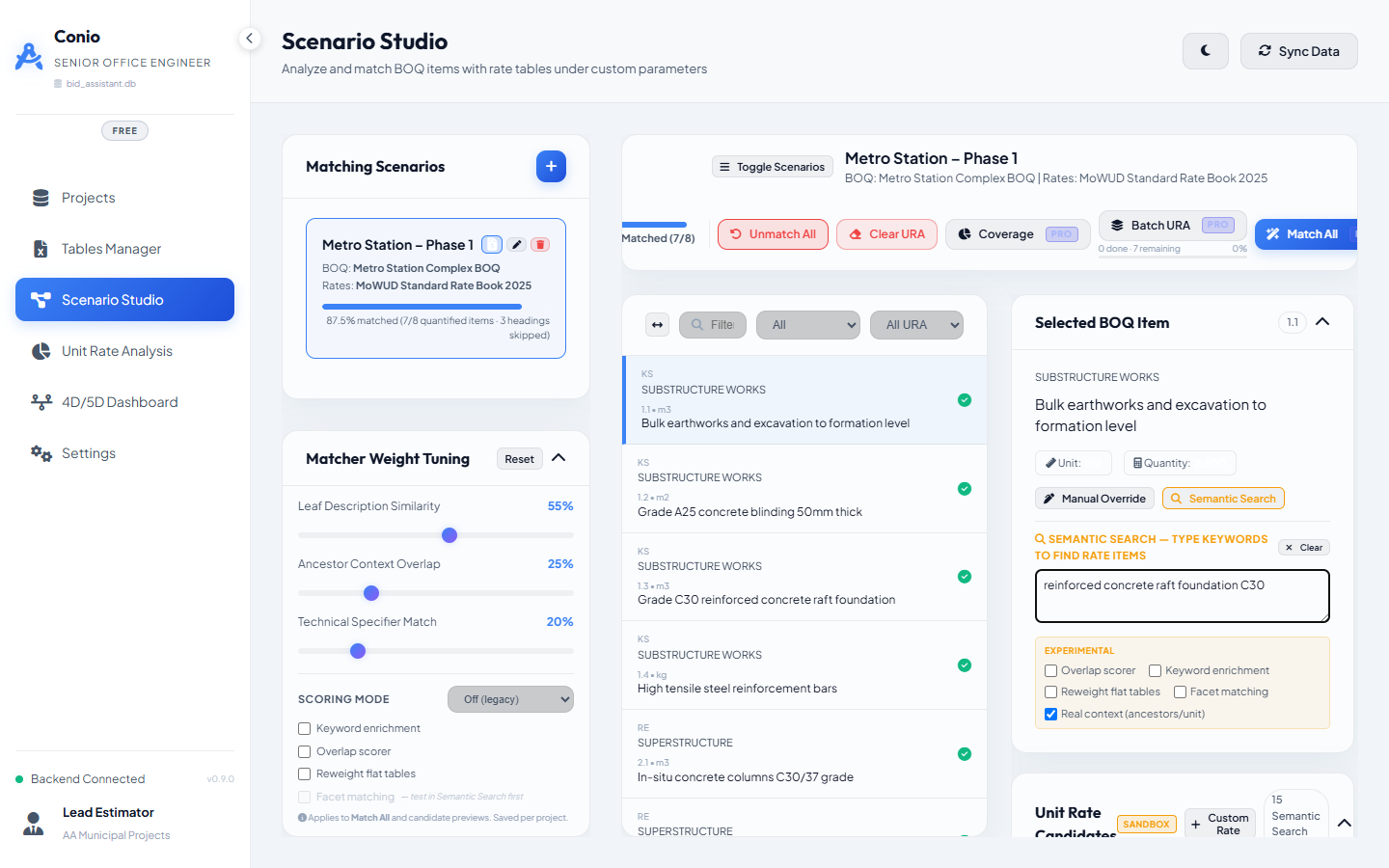
How to use it
- Type one or more keywords in the search field (e.g.
concrete slab c-25). - The candidate list shows rate items ranked by keyword match against your input alone.
- If you find a good candidate here, click Override to apply it directly to the BOQ item.
Common use: The normal scoring produces no good candidates (perhaps because the BOQ description uses terminology that does not appear in the rate table at all). Semantic Search lets you surface the right rate item by typing the rate table's own vocabulary, then manually apply it.
Experimental flags (Semantic Search panel)
The Semantic Search panel also exposes experimental scoring flags for testing on a single item before enabling them in the project profile:
| Flag | What it tests |
|---|---|
| Keyword enrichment | Adds the item's stored description_keywords to the search input |
| Real context (ancestors / unit) | Replays the item's real ancestor hierarchy and unit in the scoring |
| Facet matching | Enables facet sub-scoring and grade penalties for this item only |
Toggle these flags and observe how the candidate ranking changes. This is the recommended validation path before enabling Facet matching in the project-wide Matcher Scoring Profile.