Resource Price Book
The Resource Price Book holds unit rates for every material, labour category, and equipment type used in the project. The AI generates quantities and crew configurations — it never sets prices. All rates come exclusively from the price book.
What a price book contains
| Section | Examples |
|---|---|
| Materials | Cement (50 kg bag), Reinforcement bar 10 mm dia (kg), Concrete C-25 ready-mix (m³) |
| Labour | Mason (day), Unskilled labourer (day), Carpenter (day) |
| Equipment | Concrete mixer 0.5 m³ (hour), Tower crane (hour), Compactor (day) |
Each resource has a name, unit, and unit rate.
Importing a price book
- Go to Table Manager and scroll to the Resource Price Books section.
- Click Import Price Book.
- Select your
.xlsxor.csvfile. - Map the columns: Name, Unit, Rate, and optionally Category (materials / labour / equipment).
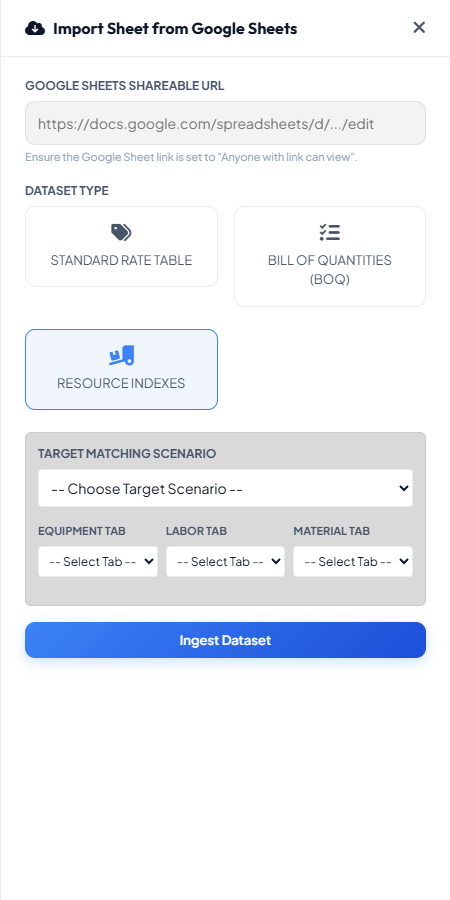
If you have separate sheets for materials, labour, and equipment, import each sheet separately — Conio will merge them under the same price book.
Setting the Active Price Book
When a scenario has multiple price books available (or when generating URAs for the first time), Conio needs to know which book to use. The Active Price Book is the project-wide default.
To set a book as active:
- In Table Manager → Resource Price Books, find the card you want.
- Click the ★ star icon.
The active card shows a green left border and ● Active. Only one book can be active at a time.
The active price book is used automatically when:
- Generating URAs for a scenario that has no resources loaded.
- Pricing templates via Export as Rate Table → Priced.
Resource match confidence
When the AI names a resource in a generated URA, Conio looks it up in the price book and reports how well the name matched:
| Badge | Meaning |
|---|---|
| (no badge) — exact | The AI-generated name matches a price book entry verbatim |
~ — fuzzy | The nearest substring match was used; review that the right resource was selected |
⚠ — unmatched | No match found; the rate for this row is 0 |
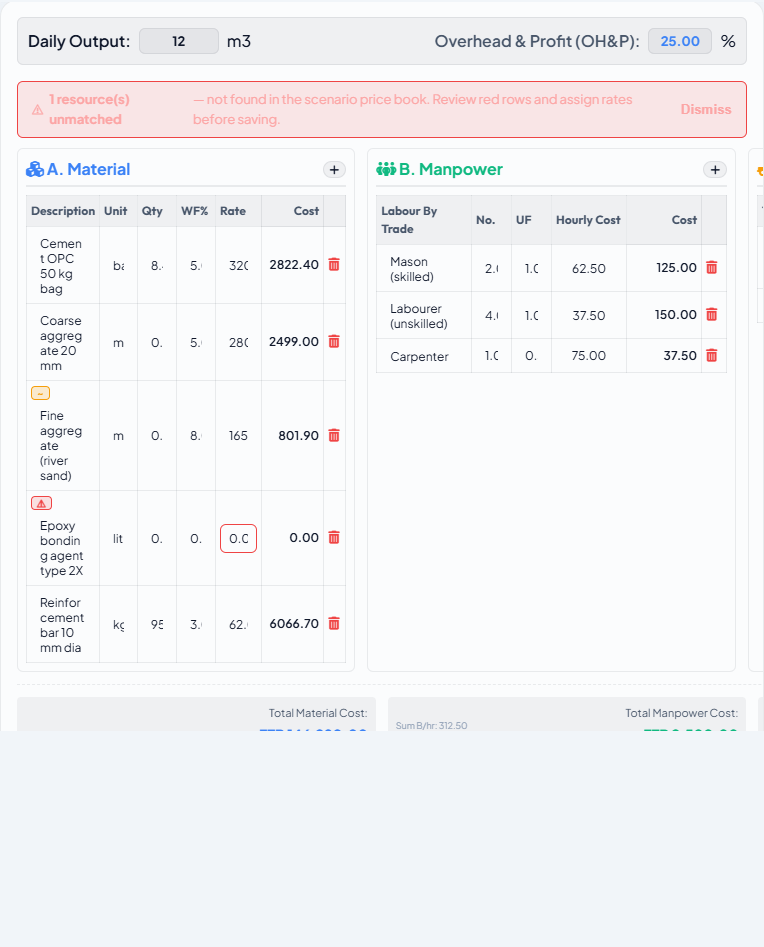
A yellow zero-rate warning banner appears above the URA grid whenever any resource row is unmatched. Review the price book and add the missing resource, then re-generate the URA or manually enter the rate on the unmatched row.
Waste factors
Each material row in a URA carries a waste factor percentage (0–20%). The effective quantity used in cost calculation is:
Effective quantity = quantity × (1 + waste_factor / 100)
The AI estimates waste within recommended ranges:
| Material type | Typical waste factor |
|---|---|
| Concrete | 5–10% |
| Masonry units (blocks, bricks) | 10–15% |
| Reinforcement bar | 3–5% |
| Timber, plywood | 5–10% |
| Other materials | 2–5% |
You can edit waste factors manually in the URA workspace.