Exporting Results
Conio provides several export paths depending on what you need to share or reuse.
Exporting URA tables
Each URA can be exported from the workspace:
- Open the URA workspace for a matched item.
- Click Export in the toolbar.
- Choose the format:
| Format | Contents |
|---|---|
| CSV | One row per resource (material / labour / equipment) with name, quantity, unit, waste factor, rate, cost subtotal |
| Excel (.xlsx) | Same data with formatting; suitable for direct submission or integration into a bill of quantities document |
The export includes the computed direct cost, OH&P amount, and total unit rate at the bottom.
Exporting the Template Library as a Rate Table
Templates in the Recipe Library can be published as a Standard Rate Table. This is the key mechanism that creates definitive template links — when BOQ items are matched against the exported rate table, their URAs are adopted verbatim from the source template with no AI call.
Opening the export
In Settings → Recipe Library, click the Export dropdown:
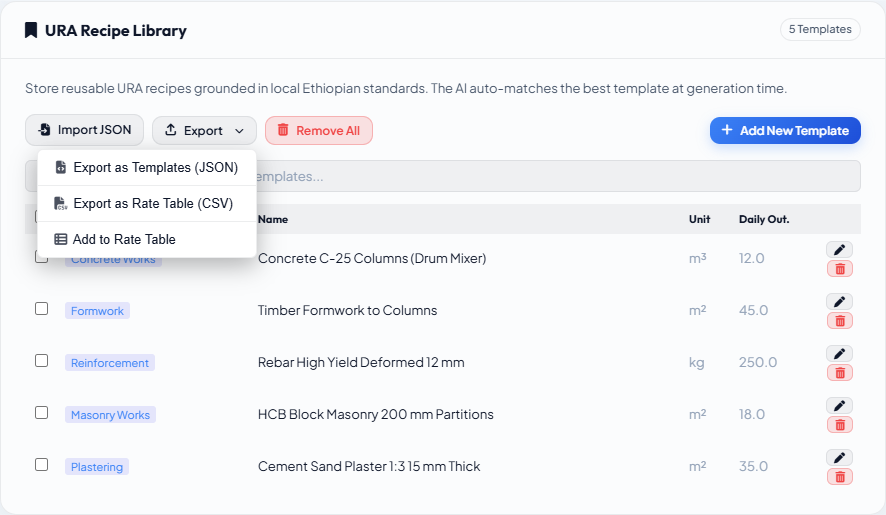
The three options are:
| Option | Description |
|---|---|
| Export as Templates (JSON) | Downloads all templates as a JSON file for import into another Conio project. Rates are zeroed. |
| Export as Rate Table (CSV) | Downloads a CSV for use outside Conio (Excel, other tools). |
| Add to Rate Table | Inserts templates directly into the project's rate table store. |
Selecting a subset of templates
By default, all templates are included. To export a subset:
- Check the boxes on the rows you want in the template table.
- A selection badge shows the count.
- Click Export. Only the selected templates are included.
Leave all boxes unchecked to include all templates.
Export as Rate Table (CSV)
Pricing mode:
| Mode | Rate column | When to use |
|---|---|---|
| Recipe only | 0 (zero) | Sharing the resource structure without prices |
| Priced | Computed from active price book + OH&P | When you want a priced rate table for tendering or cost control |
The priced mode requires an Active Price Book to be set. If no active book is configured, the priced option is disabled.
The CSV is BOM-encoded for direct Excel import (no garbled characters). Columns: Description, Unit, Rate, Work Class, source_template_name, source_template_keywords.
Add to Rate Table (in-app)
Creates or appends a rate table inside your project from the selected templates:
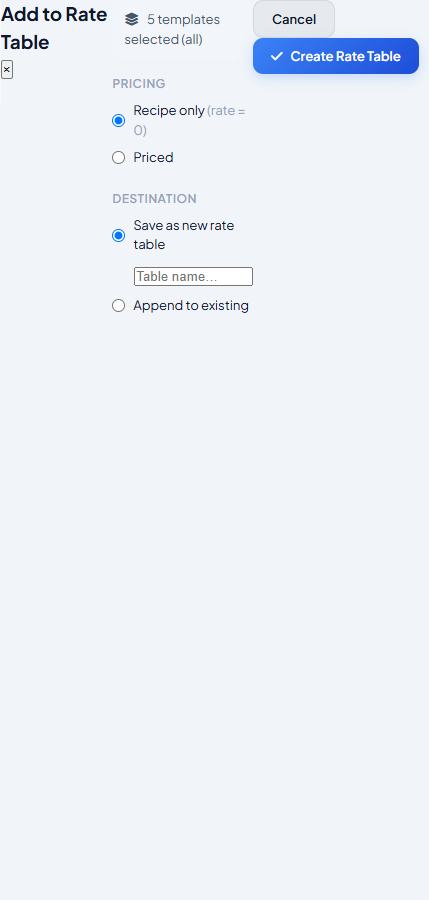
Destination:
| Option | Behaviour |
|---|---|
| Save as new | Creates a new named rate table in Table Manager |
| Append to existing | Adds to a rate table you choose from a dropdown; duplicate rows (same description + unit) are skipped automatically |
When you match BOQ items against a rate table produced by Add to Rate Table, each rate row carries a source_template_id back to the template that produced it. When you then generate URAs for those items, Conio detects the provenance and adopts the template verbatim — zero AI calls, no drift, resources re-priced from the current price book. This is the fastest and most consistent path for a large BOQ where you have already seeded all work type templates.
Summary: which export to use
| Goal | Export to use |
|---|---|
| Share rate structure with another team (no prices) | Export as Rate Table (CSV) — Recipe only |
| Submit a priced rate schedule | Export as Rate Table (CSV) — Priced |
| Reuse templates in another Conio project | Export as Templates (JSON) |
| Build a project rate table that enables no-AI URA generation | Add to Rate Table (in-app) |
| Export individual item URA for a cost report | URA workspace → Export |