Table Manager
Table Manager is the central hub for all imported data. It is divided into three sections: BOQ Tables, Rate Tables, and Resource Price Books. Each section lists every table you have imported into the current project.
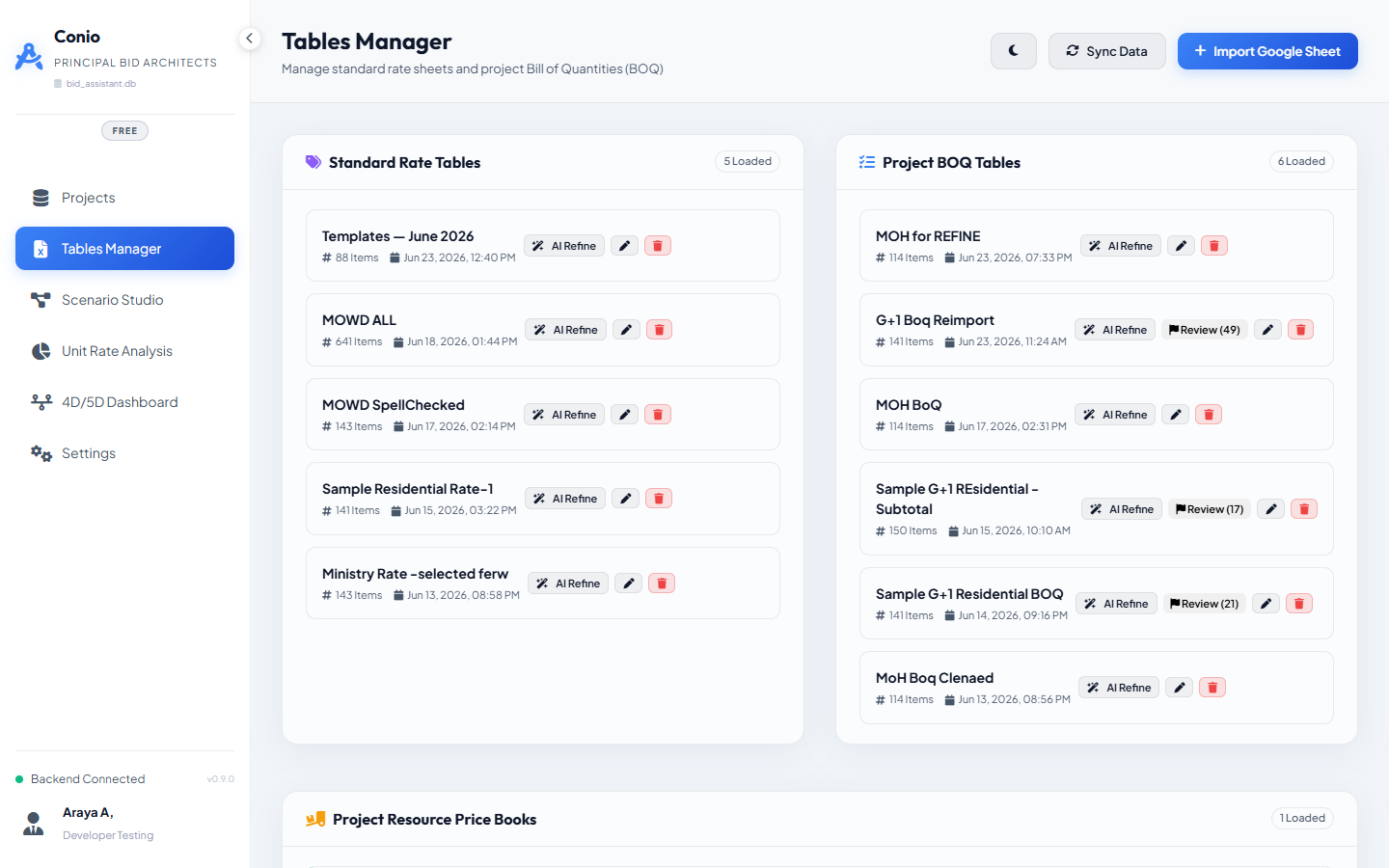
Reading a table card
Each table is represented by a card showing:
- Name — the name you gave at import, or the filename.
- Row count — total rows imported (including headings for BOQ tables).
- Date imported.
- Action buttons — Preview, Rename, AI Refine (Pro), Delete.
Previewing a table
Click Preview on any table card to open the preview panel on the right. The panel shows a scrollable list of all items.
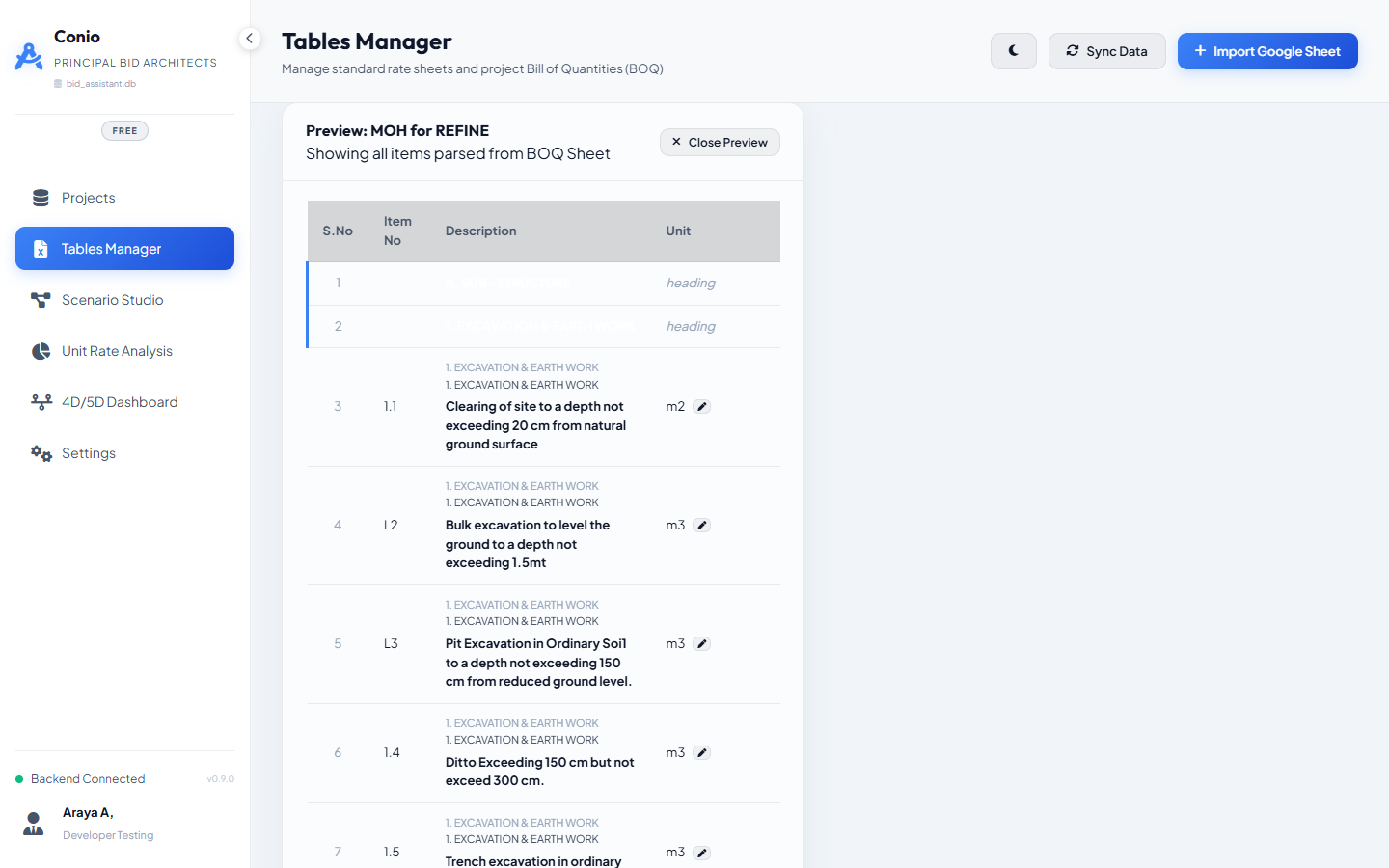
For BOQ tables that have been through AI Refine, each item shows:
- The AI-refined description as the primary text.
- A smaller italic
orig: …line showing the original leaf description for reference.
Items that have not been refined show only the original leaf_description.
Renaming a table
- Click the pencil icon on the table card, or click Rename in the card menu.
- Type the new name inline and press Enter.
The new name is reflected immediately in all scenario selectors and dropdowns across the app.
Setting the Active Price Book
A project can have multiple resource price books (different regions, different pricing years). The Active Price Book is the one used automatically when generating URAs for scenarios that have no resources of their own.
To set a price book as active:
- In the Resource Price Books section, find the card you want to activate.
- Click the ★ star icon.
The active card shows a green left border and an ● Active indicator. All other cards show amber.

Only one price book can be active at a time. Clicking ★ on a different card transfers the active status immediately.
Deleting a table
Click Delete on a table card. A confirmation dialog lists any scenarios that currently reference this table. Deleting a table that is used in a scenario removes those matches; you would need to re-run matching after importing a replacement.
Deletion cannot be undone. Export or back up the table first if you may need it again.