AI Provider Setup PRO
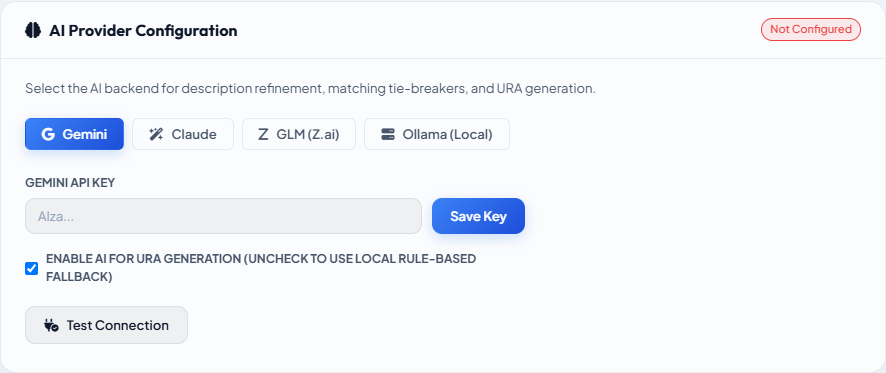
Conio supports four AI providers. All AI features — description refinement, rate matching, and URA generation — run through whichever provider you configure here. You can switch providers at any time without losing any data.
AI provider configuration is available on the Pro tier. On the Free tier the Settings → AI Model panel is visible but the test button and save action are gated. See Licensing.
Supported providers
| Provider | Best for | Notes |
|---|---|---|
| Google Gemini | General use; fast and cost-effective | Requires a Google AI Studio API key; subject to per-minute quotas |
| Anthropic Claude | High accuracy on complex descriptions | Requires an Anthropic API key; slightly higher cost per token |
| Ollama | Fully offline use | Runs a local model on your machine; no API key; no internet required after model download. Full setup guide → |
| GLM-4 | Alternative to Gemini; strong on structured data | Requires a Zhipu AI API key |
Entering your API key
- Open Settings (gear icon in the left sidebar).
- Click AI Provider in the Settings navigation.
- Select your provider tab (Gemini, Claude, GLM, or Ollama).
- Paste your API key into the key field.
- Click Save.
API keys are stored locally in your project database and in the app's configuration — they are never sent to any Conio server.
Testing your connection
Click Test after saving your key. The test sends a small probe request to the provider and reports the result inline.
Common error messages and what they mean:
| Message | Cause | Fix |
|---|---|---|
API key not valid | Key is incorrect or has been revoked | Generate a new key in your provider's console |
Resource exhausted / Quota exceeded | You have hit your provider's rate limit | Wait for the quota window to reset (usually 1 minute); upgrade your provider plan |
Connection refused (Ollama) | Ollama is not running on this machine | Start Ollama: open a terminal and run ollama serve |
Timeout | Network latency or provider outage | Try again; check provider status page |
Choosing a provider
For most users: Start with Google Gemini. It has a generous free tier, is fast, and handles construction terminology well. If you exhaust the free quota during a large refine or batch job, the persistent error panel will show the exact retry time.
For offline environments: Configure Ollama with a local model. See the Ollama Setup guide for installation, Docker network configuration, and model selection.
For the highest description accuracy: Claude produces the most precise abbreviation expansions and keyword extractions on ambiguous descriptions. The tradeoff is slightly higher cost per run.
Switching providers mid-project
Changing the provider in Settings takes effect on the next AI action. Existing refined descriptions, matched rates, and generated URAs are not affected — they were produced by whichever provider was active at the time and are stored in your database permanently.