Manual Rate Matching
Manual matching lets you review candidates and confirm or override each match decision without running AI. It is the baseline workflow available on the Free tier and is also how you review and correct AI-generated matches on the Pro tier.
The candidates panel
Select any BOQ item in the left panel. The Candidates panel on the right loads the top-ranked rate table items for that description.
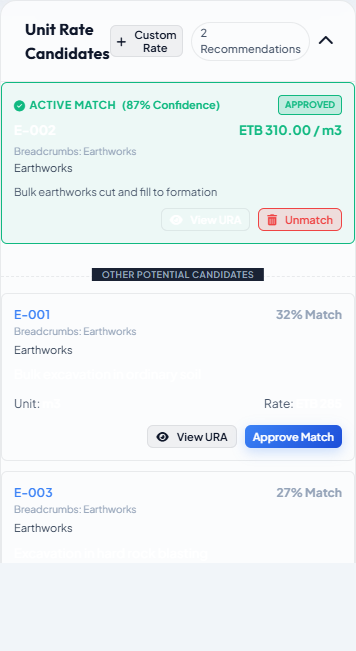
Each candidate card shows:
- Match score (0.00 – 1.00) — higher is better.
- Rate table description — the rate item text as imported.
- Unit — the rate item's unit of measurement.
- Rate — the unit rate from the rate table.
Candidates are sorted by score descending. The top candidate is highlighted.
Candidates with a score below the configured minimum threshold are not shown. The default threshold (set in Settings) filters out clearly irrelevant matches. If no candidates appear at all, the threshold may be too high or the description may need refinement — see AI Refine.
Approving a match
When the top candidate looks correct:
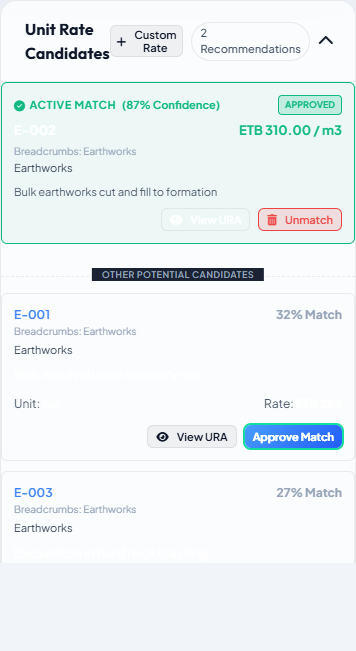
- Click Approve on the candidate card, or press A with the item selected.
The BOQ item's status changes to approved (green dot). The rate from the approved candidate is recorded for cost calculation.
Unit mismatch
Conio will not allow you to approve a match where the units do not agree. A unit mismatch warning appears on the candidate card.
Interchangeable units (treated as matching): pcs, ea, nos.
All other unit combinations block the match. For example, you cannot approve m² against m³, or lm against m². If the top candidate has a conflicting unit, look further down the list or use a manual override.
Manual override
If none of the candidates are correct — or you want to use a rate that is not in the rate table:
- Click Override (or the pencil icon) on the BOQ item row.
- Enter a description note and a unit rate in the override dialog.
- Click Save.
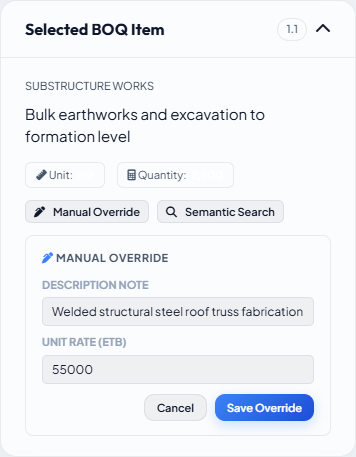
The item's status changes to manual (purple dot). The custom rate is used for cost calculations. The original candidates remain visible if you want to review them later.
Unmatching an item
To reset an item back to pending:
- Right-click the item in the left panel (or open its action menu).
- Click Unmatch.
The match decision and rate are cleared. The item returns to the pending queue for re-matching.
Unmatch All in the toolbar resets every item in the scenario at once. URA breakdowns attached to items are preserved — only the match decisions are cleared.
Next step
Configure the Matcher Scoring Profile to improve AI match quality →