AI Schedule — Automatic Predecessor Inference PRO
AI Schedule analyses your BOQ structure and infers construction-logical predecessor relationships automatically, then iterates until the resulting S-curve meets an acceptable quality threshold.
What AI Schedule does
The inference engine runs in two passes.
Pass 1 — Intra-section: One LLM call is made per top-level WBS section (the first-level ancestor grouping in your BOQ). Each call receives the items within that section in a compact format and returns finish-to-start, start-to-start, or finish-to-finish predecessor links that reflect correct construction sequence within the section. For example, within a Substructure section the engine assigns excavation before blinding concrete before reinforced footings before column bases.
Pass 2 — Cross-section: A single lightweight LLM call uses section-level summaries — one line per section showing the section name, first activity, last activity, and trade family — to stitch sections together in construction order. Substructure is linked before Superstructure, Superstructure before Internal Finishes, Finishes before MEP fit-out, and so on.
After each inference pass the CPM engine re-runs the forward and backward pass, and the S-curve shape is scored against construction industry benchmarks. The AI iterates until the score meets the accept threshold or the iteration limit is reached, feeding the previous score and a plain-English diagnosis back into the next inference call to guide improvement.
The AI never overwrites user-set predecessor links when Protect my links is on. User-drawn links are stored separately in the database and always take merge priority over AI-suggested links.
Prerequisites
- At least one matched BOQ item with a URA. Duration is calculated as quantity divided by daily output from the URA. Items with no URA receive a default one-day duration.
- At least one top-level WBS section (a heading row whose ancestor path defines the first grouping level) in the BOQ.
- An AI provider configured and tested in Settings. See AI Providers.
Launching AI Schedule
- Open the 4D/5D Schedule tab from the main app navigation — it opens in a new browser tab.
- Select your scenario from the dropdown in the toolbar.
- Click Generate Schedule (or Refresh) to produce the baseline CPM result first.
- Click AI Schedule in the top-right of the toolbar to open the optimisation modal.

- Review the controls and adjust if needed (defaults work for most projects).
- Click Run Optimisation.
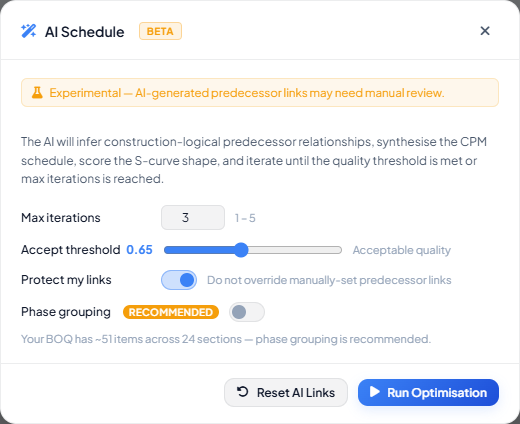
AI Schedule modal controls
| Control | Default | What it does |
|---|---|---|
| Max iterations | 3 | Maximum infer → synthesise → score cycles (1–5). Increase to 5 for complex BOQ. |
| Accept threshold | 0.65 | S-curve score at which the AI considers the schedule acceptable and stops early. |
| Protect my links | On | Items with user-set predecessors are skipped by AI inference. Turn off only to let AI suggest alternatives for already-linked items (user links still take merge priority). |
| Phase grouping | Off | Groups WBS sections by construction phase before sequencing. A "recommended" badge appears automatically when 20 or more sections or 300 or more items are detected. |
Iteration progress
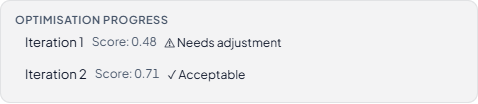
While the run is in progress, and after it completes, the progress panel shows one row per iteration:
- Each row reads: Iteration N — Score: X.XX followed by a warning indicator for needs adjustment or a check mark for acceptable.
- A mini S-curve overlay renders one cumulative-cost line per iteration. Improving iterations show a better sigmoid shape; the lines converge toward the ideal S as iterations progress.
- The run stops automatically when the score reaches the accept threshold, or when the iteration limit is reached, whichever comes first.
- The Stop button cancels the run after the current iteration completes cleanly — it does not interrupt mid-iteration.
Understanding the S-curve quality score
The score is a weighted composite of four metrics, each measuring a different aspect of cash-flow distribution against construction industry benchmarks.
- Front-load ratio (35% weight): Penalises schedules where more than 40% of project cost lands in the first third of the timeline. Front-loading is the most common sequencing error — it usually means every section is chained with finish-to-start links, forcing all work to stack at the beginning before any successor can start.
- Peak position (30% weight): Peak periodic spending should fall between 30% and 70% of project duration. A very early peak indicates front-loading; a very late peak indicates structural work has been pushed too late, perhaps by unnecessary serial dependencies.
- Tail ratio (20% weight): Penalises more than 15% of total cost landing in the final sixth of the project timeline. A heavy tail usually indicates punch-list or snagging items are sequenced too late, or that high-cost finishing items are chained end-to-end instead of running concurrently.
- Linearity error (15% weight): Measures how closely the cumulative cost curve matches a theoretical sigmoid. A staircase pattern or J-curve shape scores poorly here.
Score thresholds: 0.65 or above is Good (displayed in green), 0.45 to 0.65 is Fair (amber), below 0.45 is Poor (red).
A score of 0.65 does not mean the schedule is perfect — it means the cash-flow distribution is construction-reasonable. Always review the Gantt for logical sequencing errors before submitting a programme.
After the AI run
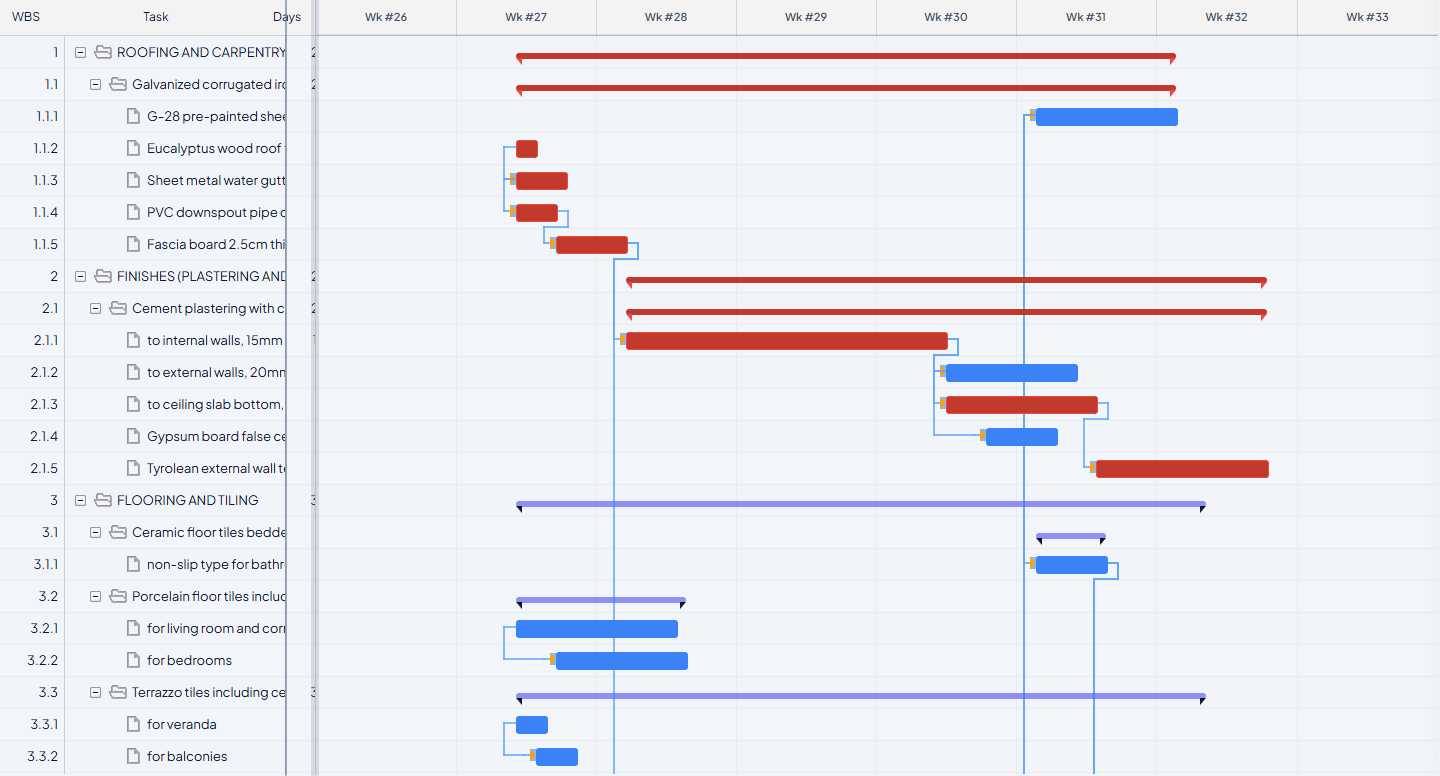
- The Gantt refreshes with AI-inferred links. The schedule is immediately usable.
- Tasks the AI could not confidently sequence are highlighted in amber. These have the
ai_needs_reviewflag set and need manual review — see Unscheduled and Amber Tasks. - The S-curve chart shows the final distribution with the quality badge below the chart title.
- AI links are stored separately from manual links in the database and survive project restarts. They are not lost when you close the browser tab.
Resetting AI links
If the result is not useful, click Reset AI Links in the modal footer. This clears all AI-inferred predecessors for the scenario and refreshes the Gantt. Manual links are not affected.
Resetting is non-destructive to your manual work. You can reset and re-run as many times as needed.