Project Management
Each Conio project is a single SQLite database file (.db) stored in your conio-data\ folder. All BOQ tables, rate tables, scenarios, price books, URAs, and templates for a project live in that one file. Nothing is shared between projects.
Creating a new project
- Click New Project in the left sidebar (or from the launcher's recent-projects screen).
- Enter a project name. The name becomes the filename:
My Building Project.db. - Click Create. The new project opens immediately.
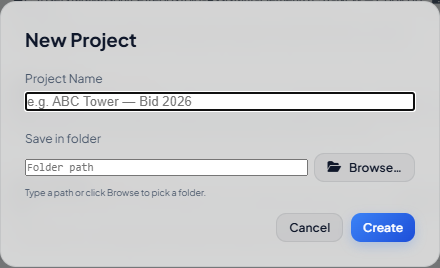
Use a name that identifies the client and the project phase — e.g. Sunrise Tower G+10 SD — so the launcher's recent-projects list stays scannable as your project count grows.
Opening an existing project
From the launcher — when you double-click the Conio shortcut, the launcher shows your five most recently used projects. Click any entry to open it directly.
From within the app — click the project name in the top-left of the sidebar to open the project switcher. All projects in conio-data\ are listed. Click one to switch.
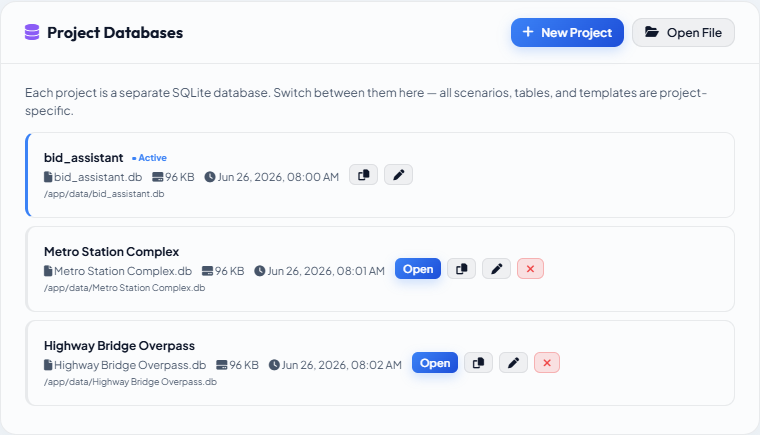
Renaming a project
- In the project switcher, hover the project row.
- Click the pencil icon that appears.
- Type the new name and press Enter.
The file on disk is renamed to match. Any open scenario in the sidebar refreshes automatically.
Where project files are stored
All databases are stored in:
C:\Users\<you>\conio\conio-data\
This folder is a Docker bind-mount — the running container reads and writes here directly. You can copy, back up, or share .db files by working with this folder in File Explorer. The app does not need to be stopped to copy a file, but close the project first to avoid partial reads.
Do not rename or move .db files manually while the project is open in the app. Use the in-app rename instead.