AI Refine PRO
AI Refine is the pre-processing step that improves matching accuracy by cleaning descriptions and attaching invisible matching metadata to every item in a table. Running Refine before matching is strongly recommended — it is the single biggest lever for improving match quality.
What Refine does
Refine runs two passes over every item in the table:
Pass 1 — Description cleaning
- Expands abbreviations:
excav.→Excavation,reinf.→Reinforcement,conc.→Concrete - Normalises phrasing: inconsistent spacing, capitalisation, punctuation
- Classifies the change as
clean(no change),minor(light normalisation),moderate(abbreviation expanded), orheavy(major restructure) - Items classified as
moderateorheavyare flagged for review
Pass 2 — Keyword and facet extraction
Each item receives two pieces of invisible matching metadata:
-
description_keywords— 5–8 generic, trade-level tokens extracted from the description and its ancestor headings. Examples:concrete,c-25,slab,in-situ,reinforced. These are used by the Keyword enrichment flag in the Matcher Scoring Profile. -
description_facets— a structured object:{ work_type, structural_element, material_grade, method }. Example:{ "concrete", "column", "C-25", "in-situ" }. Used by the Facet matching flag.
BOQ sheets routinely put the material grade in a parent heading rather than the leaf line. For example, a leaf that reads "in 12 cm thick suspended floor slab" under a heading "Concrete — C-25 — Superstructure" will receive c-25 and superstructure in its keywords — pulled from the heading, not just the leaf. This is the key reason to run Refine on BOQ tables before matching.
Running Refine
- Go to Table Manager.
- Find the table you want to refine (BOQ or Rate Table).
- Click ✦ AI Refine on the table card.

The button changes to ⟳ Refining… and is disabled while processing. This prevents duplicate submissions.

Refine processes items in batches of 15. For a 300-item table, expect 3–5 minutes on a standard Gemini quota.
Reviewing results
When Refine completes, the table card updates its row counts and the Preview panel shows refined descriptions alongside their originals. Items flagged for review are counted in the card footer.
Open the Preview to inspect changes. For each refined item you will see:
- The new refined description as the primary text.
- A smaller italic
orig: …showing the original for comparison.
Handling errors
If any batch fails (quota exceeded, timeout, or API error), Conio does not save partial results for that batch — those items remain unchanged and will be picked up on the next Refine run. A red error panel appears on the table card.
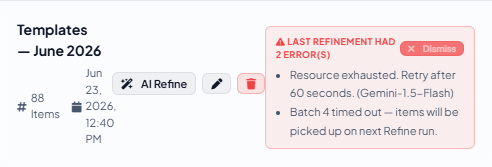
Each error shows the actual provider message (e.g. "Resource exhausted. Retry after 60 seconds"). You can:
- Dismiss the panel once you have noted the errors. A subsequent Refine run clears it automatically if all batches succeed.
- Wait for quota to reset, then click ✦ AI Refine again. Already-refined items are skipped; only unrefined items are processed.
Refining rate tables
Refine works on rate tables the same way it does on BOQ tables. Rate-side keywords and facets are used by the Keyword enrichment and Facet matching scoring flags. If you imported a rate table from a spreadsheet (rather than exporting it from the Template Library), running Refine on it populates the facets needed for facet matching.
Rate tables exported from the Template Library already have AI-generated keywords and heuristic facets — no Refine run needed.
When to re-run Refine
Re-run Refine on a BOQ table if you:
- Add new items to the table after the initial import.
- Change the active AI provider (the new model may produce better keywords).
- See persistent poor match quality despite correct scoring profile settings.