URA Analysis — AI Assisted PRO
AI-assisted URA generation produces a complete resource breakdown for a matched BOQ item in seconds. The AI draws on the active Resource Price Book, the Template Library, and the Generation Contexts you have configured — it never makes up prices.
This chapter covers single-item generation. For the recommended batch workflow that scales across a full BOQ, see Coverage Analysis & Template Seeding.
Importing starter URA templates
Before generating URAs for the first time on a new project, consider importing a starter template pack. A pack from a previous similar project gives the AI a verified structural baseline to adapt, rather than generating every item cold.
Format: CSV with columns name, unit, keywords, materials, labour, equipment. Rates are zeroed on import and re-priced from your active price book at generation time.
Import via Settings → Recipe Library → Import.
Single-item AI generation
- In Scenario Studio, select a matched BOQ item.
- Click AI Generate URA.
The URA generation modal opens.
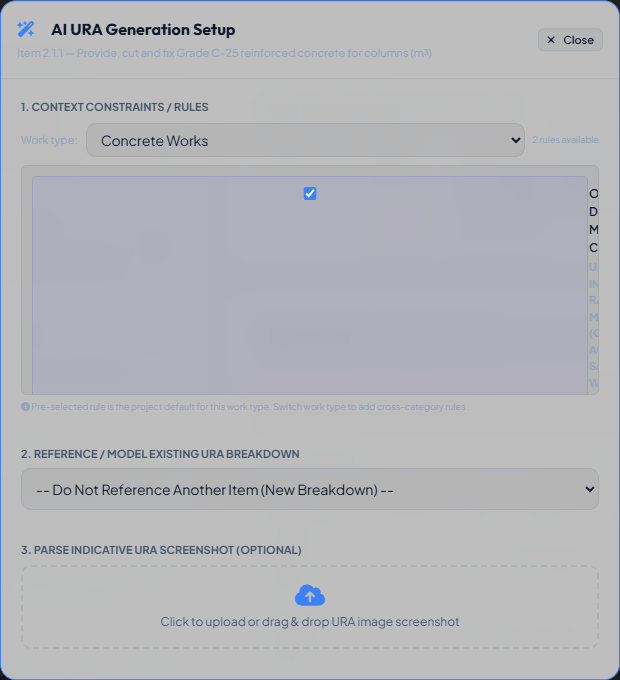
Work type selection
The modal auto-selects the most relevant work category based on keyword scoring against the item's description and ancestor path. You can:
- Keep the auto-selected category.
- Switch to a different category from the dropdown.
- Select All categories to see every available context across all categories.
Switching categories does not uncheck previously selected contexts — you can pick contexts from Concrete, Formwork, and Reinforcement simultaneously for an item that requires all three.
Context selection
Contexts for the selected category are listed with the project default pre-checked. Review and adjust:
- Uncheck any context that does not apply to this item.
- Check additional contexts if this item spans multiple methods.
Generating
Click AI Generate URA. The AI receives:
- The item description and unit.
- The selected context rules.
- The available resources from the active price book.
- The best matching template from the library (if one scores above the floor threshold).
The generated URA opens in the workspace. Review the resource rows, check for unmatched resources, adjust quantities if needed, and click Save.
Understanding the template tier banner
Every AI-generated URA shows a banner in the workspace header explaining how the Template Library was used:
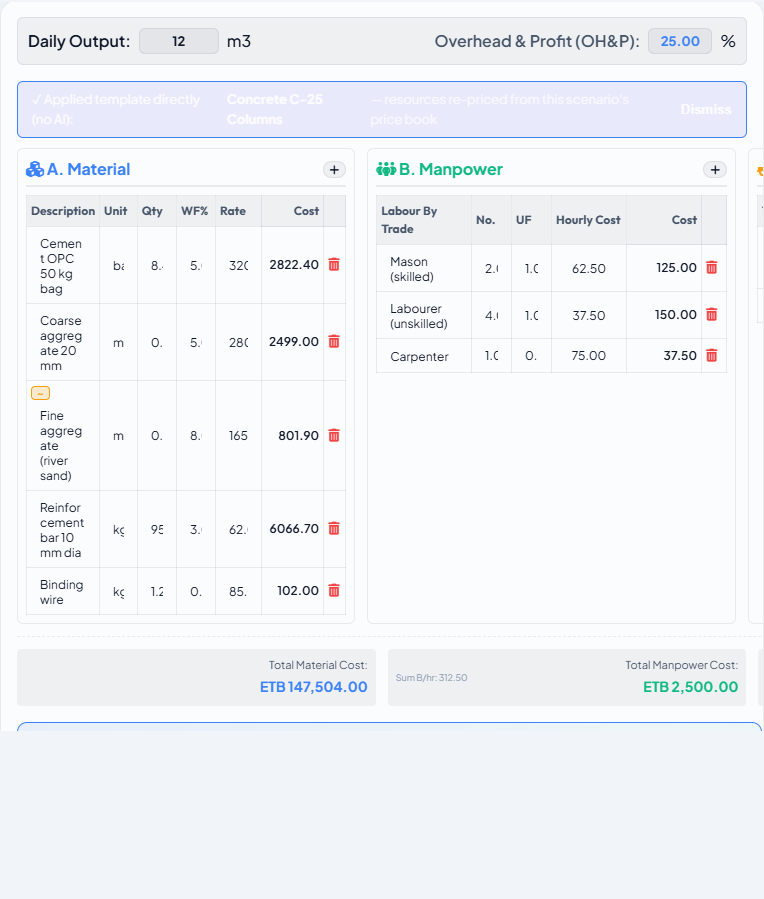
Definitive — no AI call
✓ Applied template directly (no AI) — resources re-priced from this scenario's price book
The matched rate row carries provenance back to a specific template (it was created by Export as Rate Table from the Template Library). The template is adopted verbatim; only the rates are re-resolved from the current price book. This is the fastest and most consistent outcome.
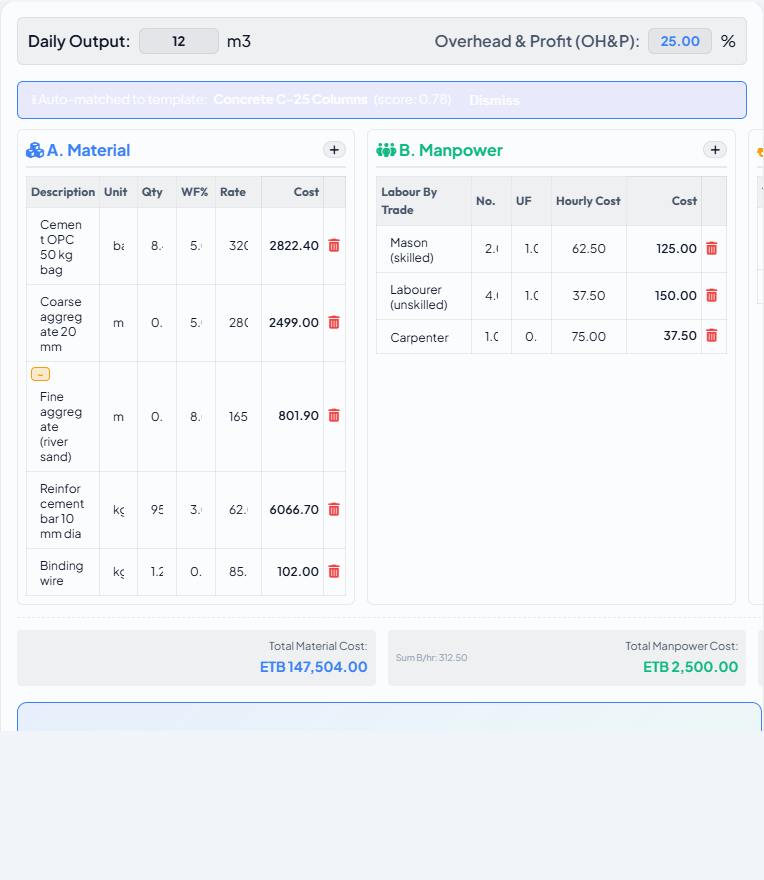
Baseline — AI adjusted quantities only
ℹ Auto-matched to template: [Template Name] (score 0.78)
A template scored ≥ 0.65. The AI kept the resource makeup intact and adjusted only quantities, crew sizes, daily output, and waste factors to fit this specific item.
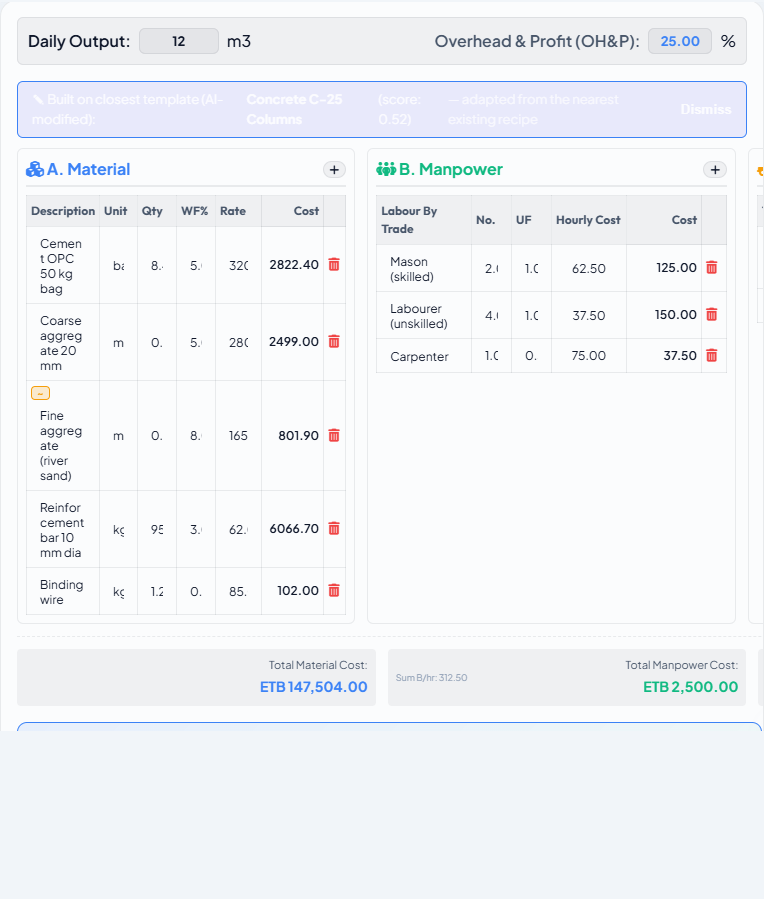
Starting point — AI modified the recipe
✎ Built on closest template (AI-modified): [Template Name] (score 0.52)
The closest template scored between 0.30 and 0.65. The AI used it as a starting point, keeping what applied and adding, removing, or substituting resources as needed for this item.
Cold — generated from scratch
No banner. The best template score was below the floor threshold (0.30). The AI generated a fresh breakdown with no structural reference. Consider seeding a template for this work type if you have multiple similar items.
When to re-generate vs edit manually
Re-generate when:
- The AI selected the wrong work type or context.
- The output is structurally wrong (wrong trade resources entirely).
Edit manually when:
- The structure is correct but a quantity or crew size needs adjustment.
- A resource is unmatched and you want to substitute a close alternative from the price book.
- The waste factor needs a project-specific override.