Scenario Studio
A scenario is a pairing of one BOQ table with one rate table. All matching, URA generation, and cost analysis happens inside a scenario. You can have multiple scenarios in a project — for example, one per tendering package or one per design option.
Creating a scenario
- Click Scenario Studio in the left sidebar.
- Click New Scenario.
- Enter a name, then select the BOQ table and Rate Table you want to pair.
- Click Create.
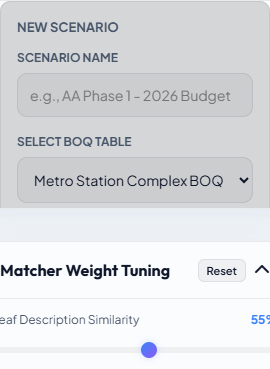
The scenario opens immediately in the Scenario Studio workspace.
The Scenario Studio layout
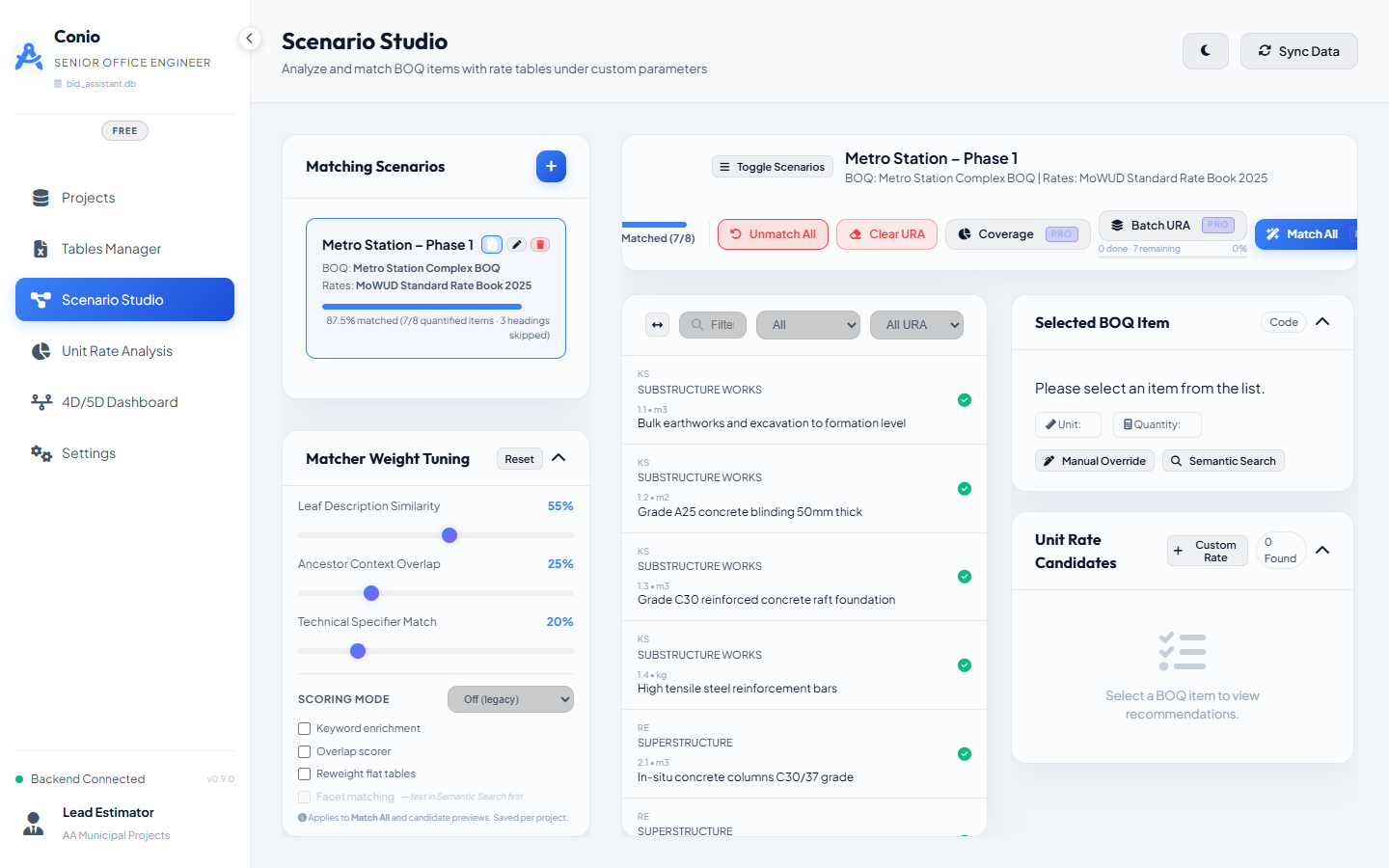
The workspace has three zones:
| Zone | Purpose |
|---|---|
| Left — BOQ item list | All items from the linked BOQ table. Click any item to select it and load its candidates on the right. Filter by match status using the tabs at the top. |
| Right — Candidates panel | Rate table items ranked by match score for the selected BOQ item. The top candidate is automatically highlighted. |
| Bottom — Status bar | Match progress stat, toolbar buttons (Match All, Unmatch All, Batch URA, Coverage). |
Match statuses
Every BOQ item carries one of four statuses, shown by a coloured dot in the item list:
| Status | Colour | Meaning |
|---|---|---|
| pending | Grey | Not yet matched |
| auto | Blue | Matched by Match All; awaiting your review |
| approved | Green | You have confirmed this match is correct |
| manual | Purple | You have overridden with a custom rate |
Filter the item list by clicking the status tabs at the top of the left panel to focus on items that need attention.
Reading the match progress stat
The status bar shows a line like:
72% matched (216 / 300 quantified items · 45 headings skipped · 12 zero-qty skipped)

- Quantified items are items with
quantity > 0— these are the items that contribute to the project cost. Headings (zero-quantity grouping rows) and zero-quantity spec notes are excluded from the percentage. - Headings skipped are section header rows with no quantity. They appear in the BOQ for structure but cannot be priced.
- Zero-qty skipped are leaf items with a quantity of zero (typically specification notes or contingency lines).
The percentage tracks only the items that matter for pricing.
Switching between scenarios
Use the scenario dropdown in the top bar of Scenario Studio. Switching is instant — there is no loading delay for small-to-medium BOQs.