AI Rate Matching (Match All) PRO
Match All processes every unmatched BOQ item in the scenario in one operation, scoring each against the rate table using the saved Matcher Scoring Profile. It is the recommended first step after configuring the scoring profile.
Before you run
Get the most from Match All by completing these steps first:
- Run AI Refine on your BOQ table — keywords and facets significantly improve scores. See AI Refine.
- Configure the Matcher Scoring Profile — choose the right preset (Flat or Hierarchical) for your rate table. See Matcher Scoring Profile.
- Test a few items in the Test Sandbox if you are unsure about the scoring profile settings.
Running Match All
- Open the scenario in Scenario Studio.
- Click Match All in the bottom toolbar.
A progress modal appears and processes items sequentially.
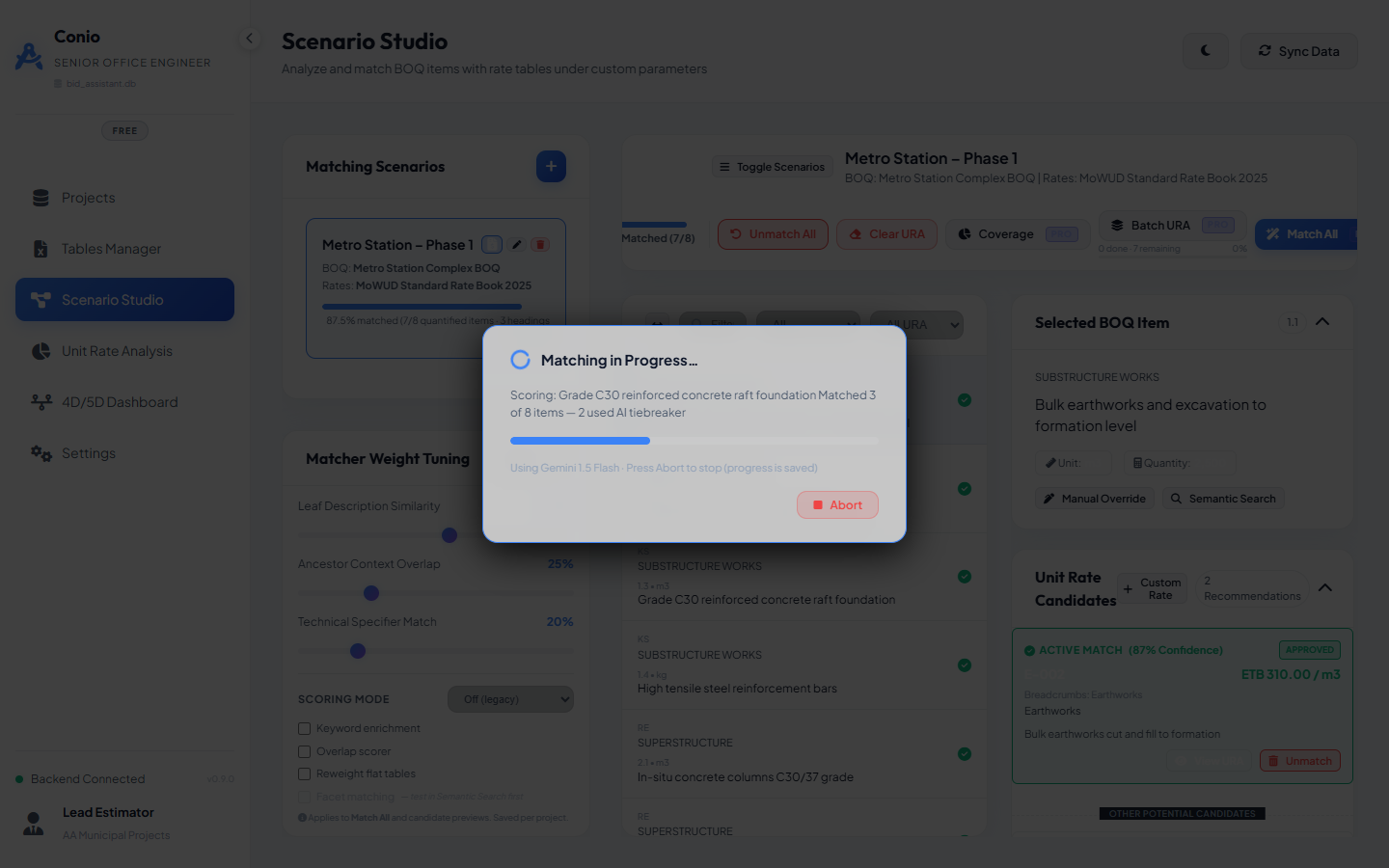
The modal shows:
- The BOQ item currently being scored.
- Running counts: matched so far / total to process.
- The AI model being used.
How scoring works
For each BOQ item, Conio:
- Scores every rate table item using the three-signal weighted formula (leaf, ancestor, spec) with the active profile flags.
- Ranks all candidates by score.
- Applies the AI tiebreaker if the result is ambiguous:
- The top two candidates are within 0.15 of each other in score, or
- The top score is below 0.55 (the confidence threshold).
- In tiebreaker cases, the AI receives the BOQ description and the top candidates' descriptions and selects the best match using engineering judgement.
Items where the top score is below the minimum threshold remain pending — they are not force-matched to a poor candidate.
Aborting mid-run
Click Abort in the progress modal at any time. The run stops after the current item completes. All items matched so far are saved — you can continue with a second Match All run and only unmatched items will be processed.
Reviewing results
After Match All completes, a toast notification summarises:
- How many items were newly matched.
- How many used the AI tiebreaker.
- How many remain pending (below threshold).
Filter the item list to auto status to review AI matches. For each item:
- A green ✓ means the AI matched with high confidence.
- Click Approve to confirm, or Override to substitute a different candidate or rate.
Approving in bulk: use the Approve All Auto button in the toolbar (if visible) to confirm all auto-matched items at once when you are satisfied with the overall result.
Re-running after Refine
If you run AI Refine on your BOQ table after Match All, re-run Match All to update matches with the improved keyword data. Previously approved and manual items are skipped — only pending and auto items are re-processed.